Church security coordination by text: message individuals, roles, or everyone on duty from the phones they already carry - without app installs, noisy
group texts, or sharing personal contact lists.
Scroll down to see several screenshots of the product in action and what a typical workflow looks like.
No app install requiredRole-based controlSmart message routingMessage history
Typical flow
Teams check in, coordinate through direct/routed messages, keep duty status visible, and finish with operational summary. Easily involve off-duty members for extra hands when urgent situations demand accurate information dispatched quickly.
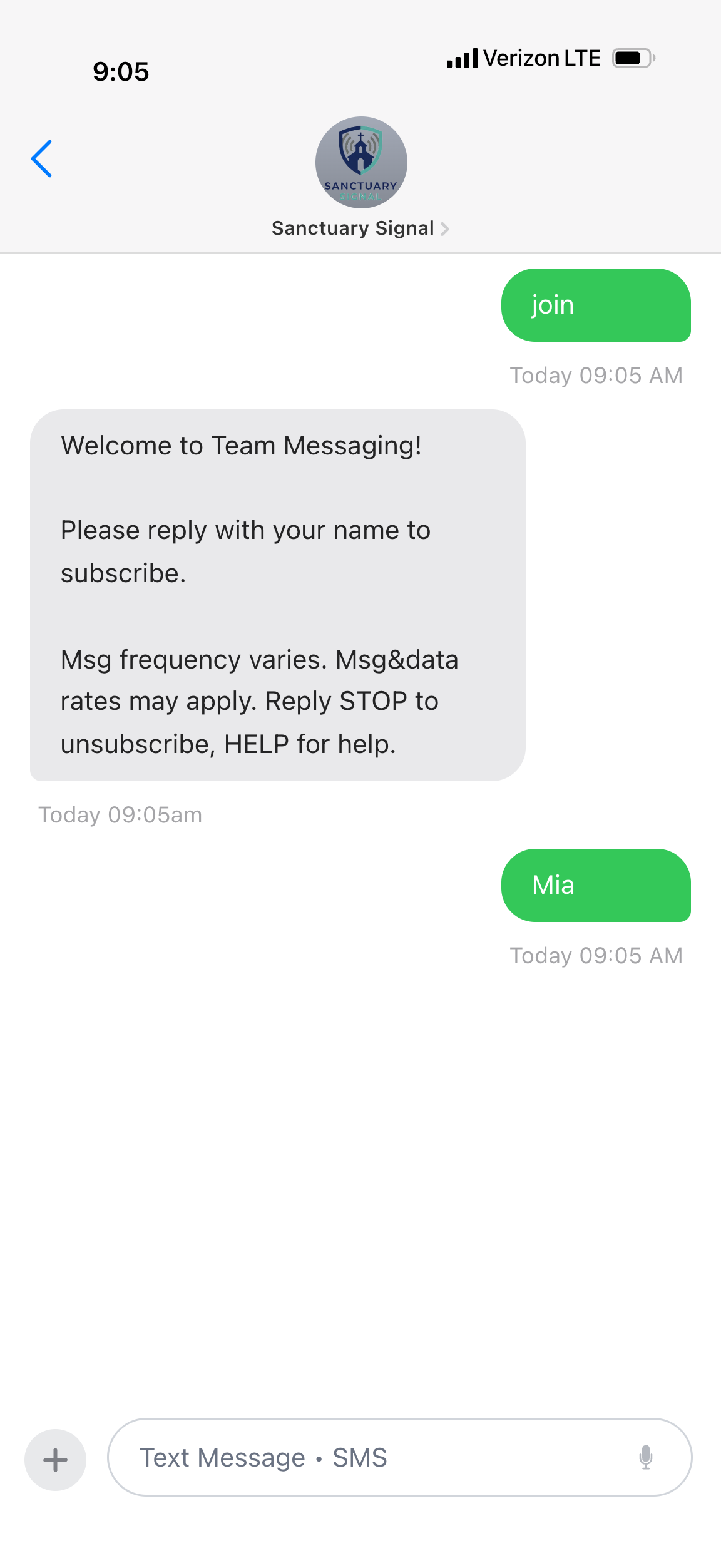
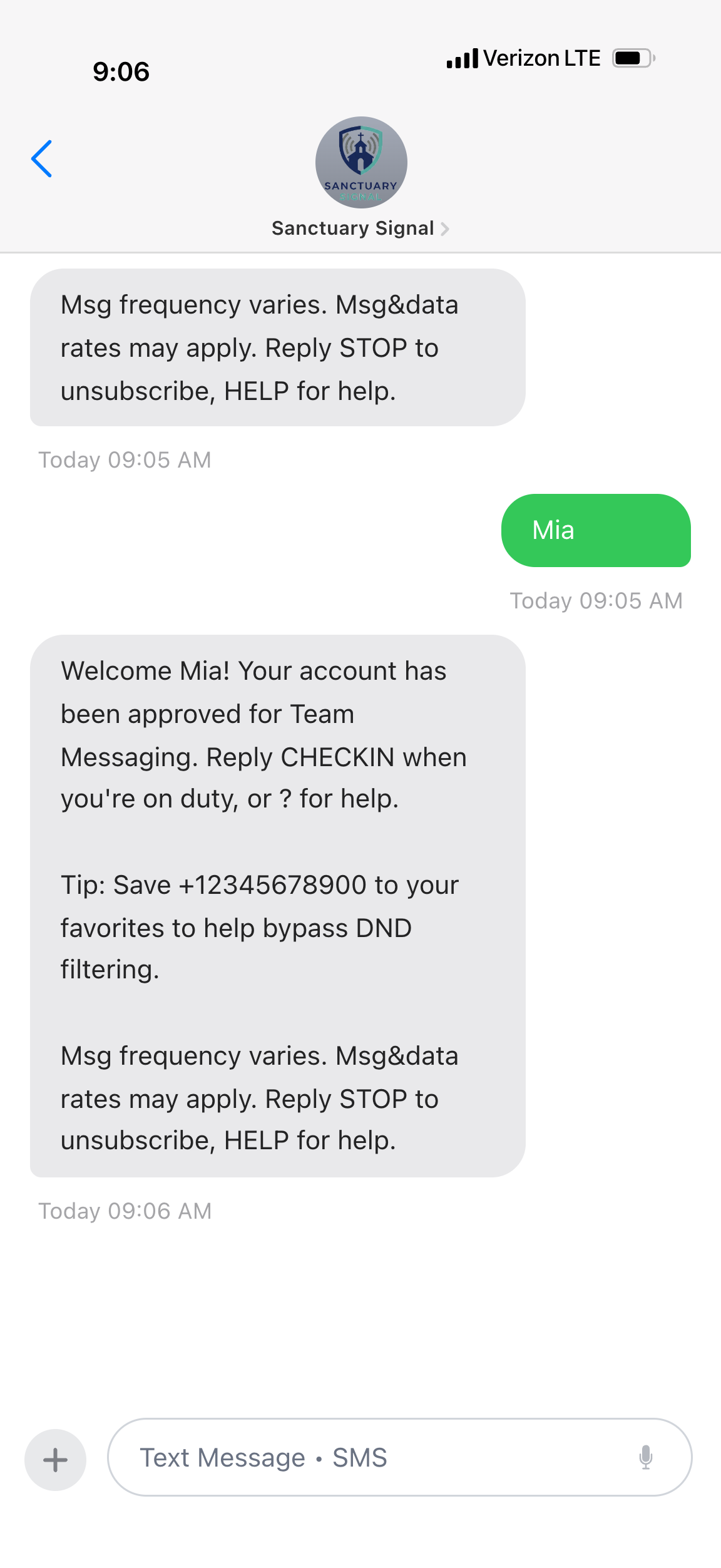
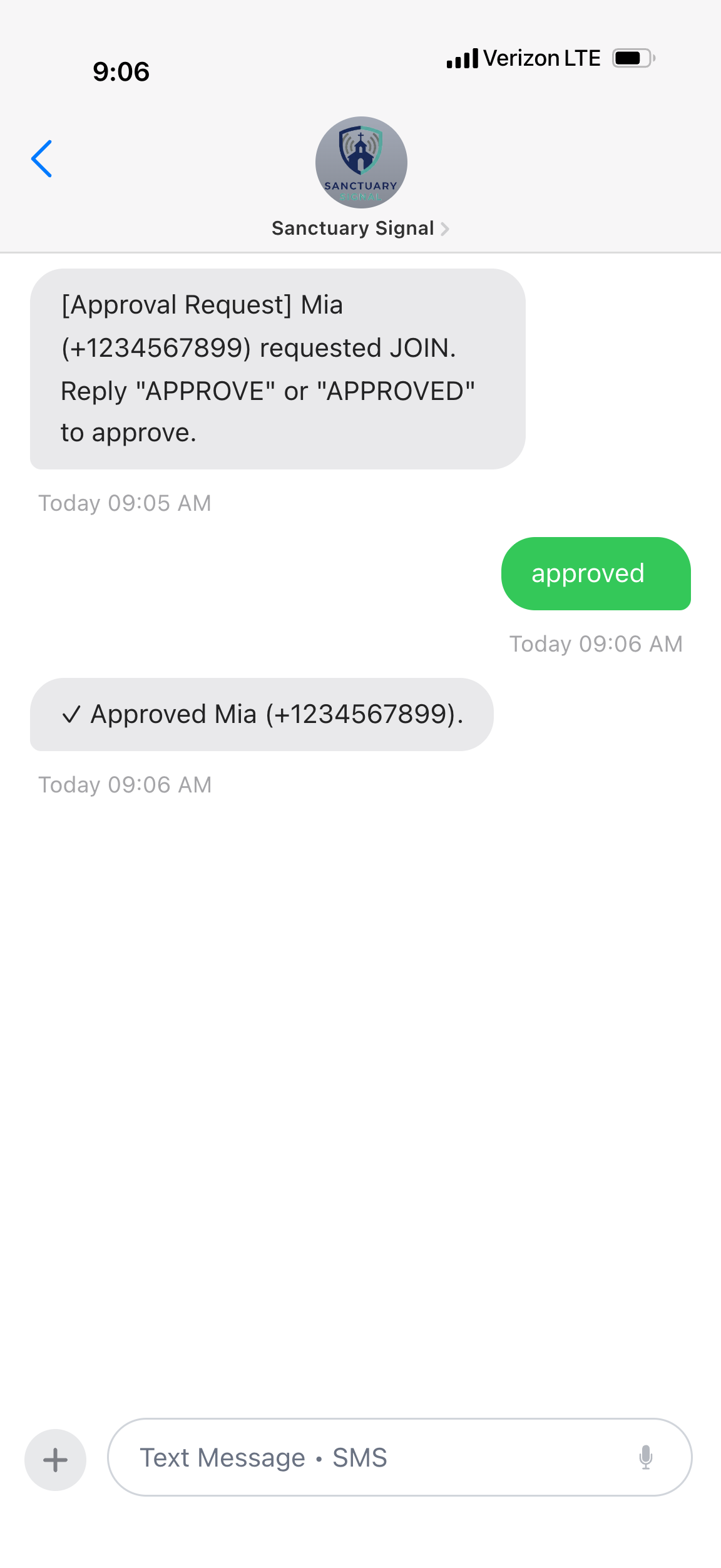
1. Join and onboarding
New members join by text and complete a quick onboarding prompt before activation.
Request: Team member texts JOIN and submits name details.
Pending: Member receives an approval status reply while access is held.
Approve: Supervisor confirms the request and enables the member for duty use.
2. Check-in and duty visibility
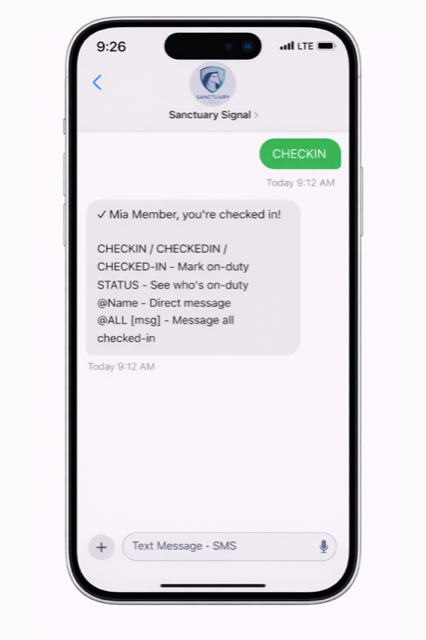
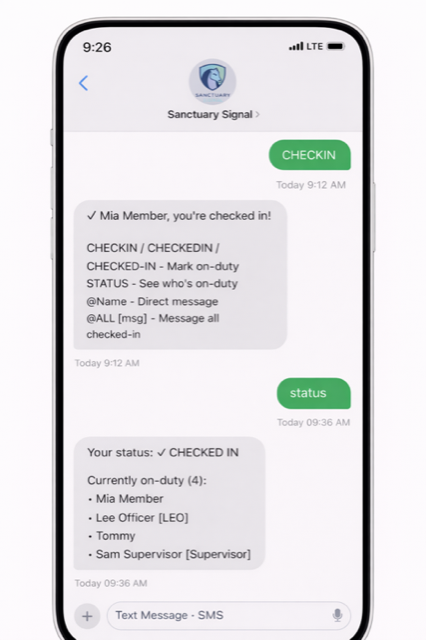
Responders check in and status updates show who is currently active for fast coordination.
CHECKIN: Responder marks on-duty and is included in live routing.
STATUS: Team sees who is on duty right now for faster decisions.
3. Direct message by name
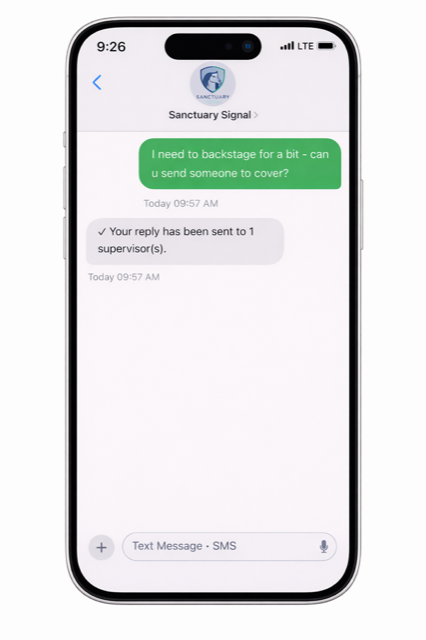
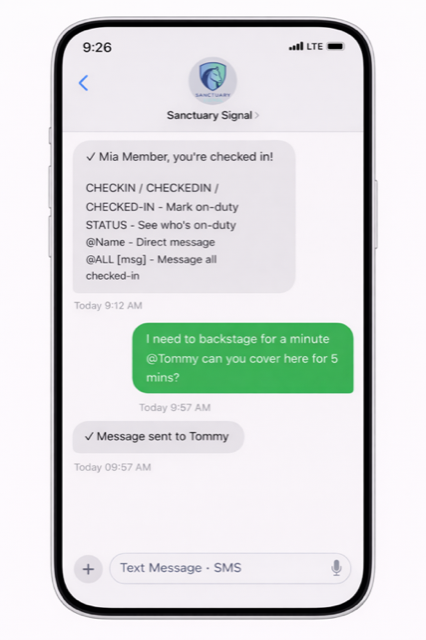
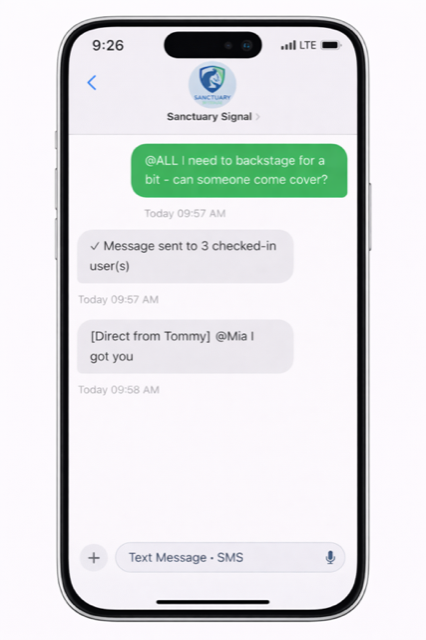
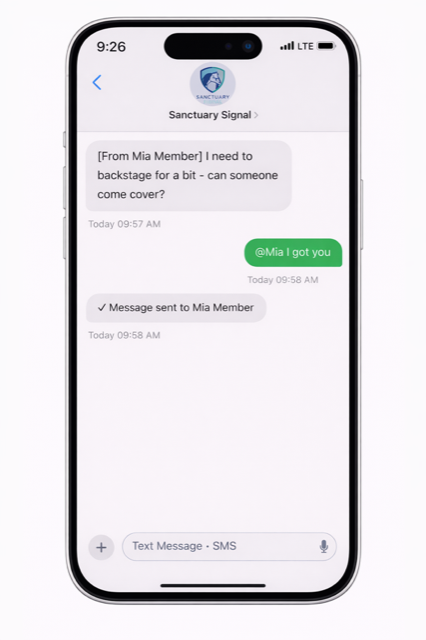
Team members message by name without sharing contact lists. If multiple matches exist, the system prompts for selection.
Default behavior: Free text gets guided so users stay in the correct command flow.
Direct message: Use @Name to contact the right teammate quickly.
Broadcast: Use @ALL when role-based broadcast capability is needed.
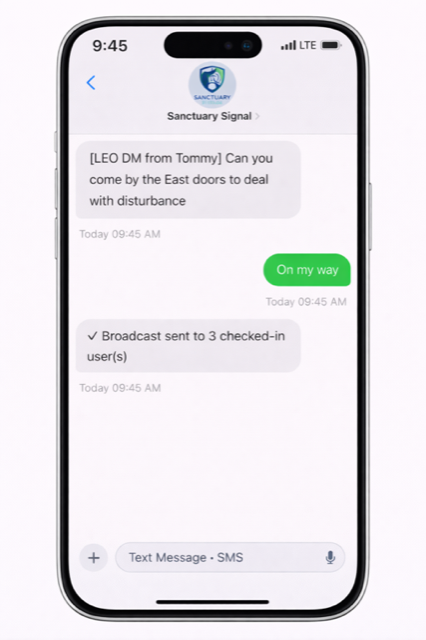
Delivery visibility: Team members see routed message context immediately.
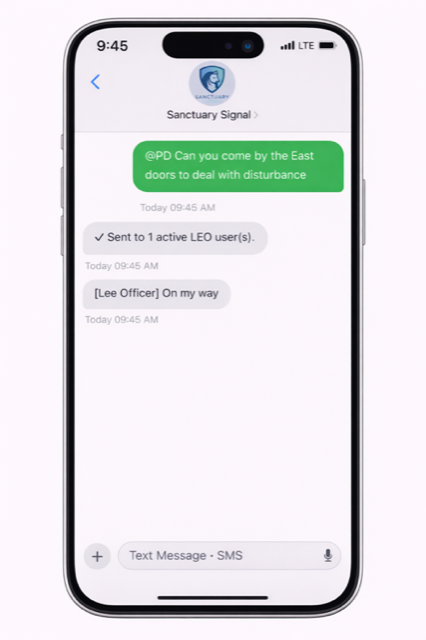
Keyword route: Use @LEO to trigger specific escalation paths.
Keyword confirmation: The system confirms response behavior for the sender.
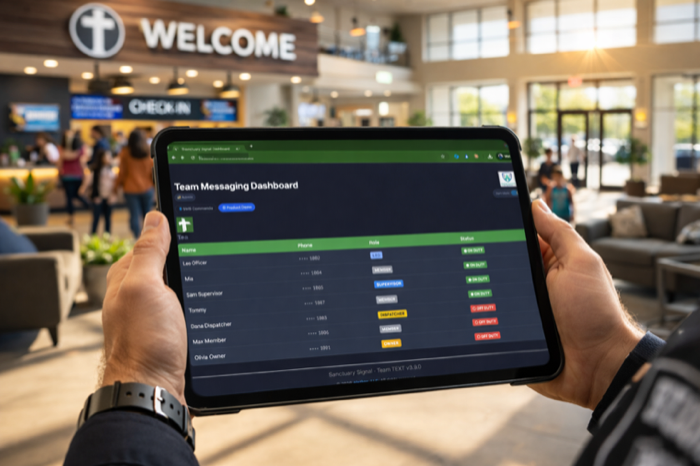
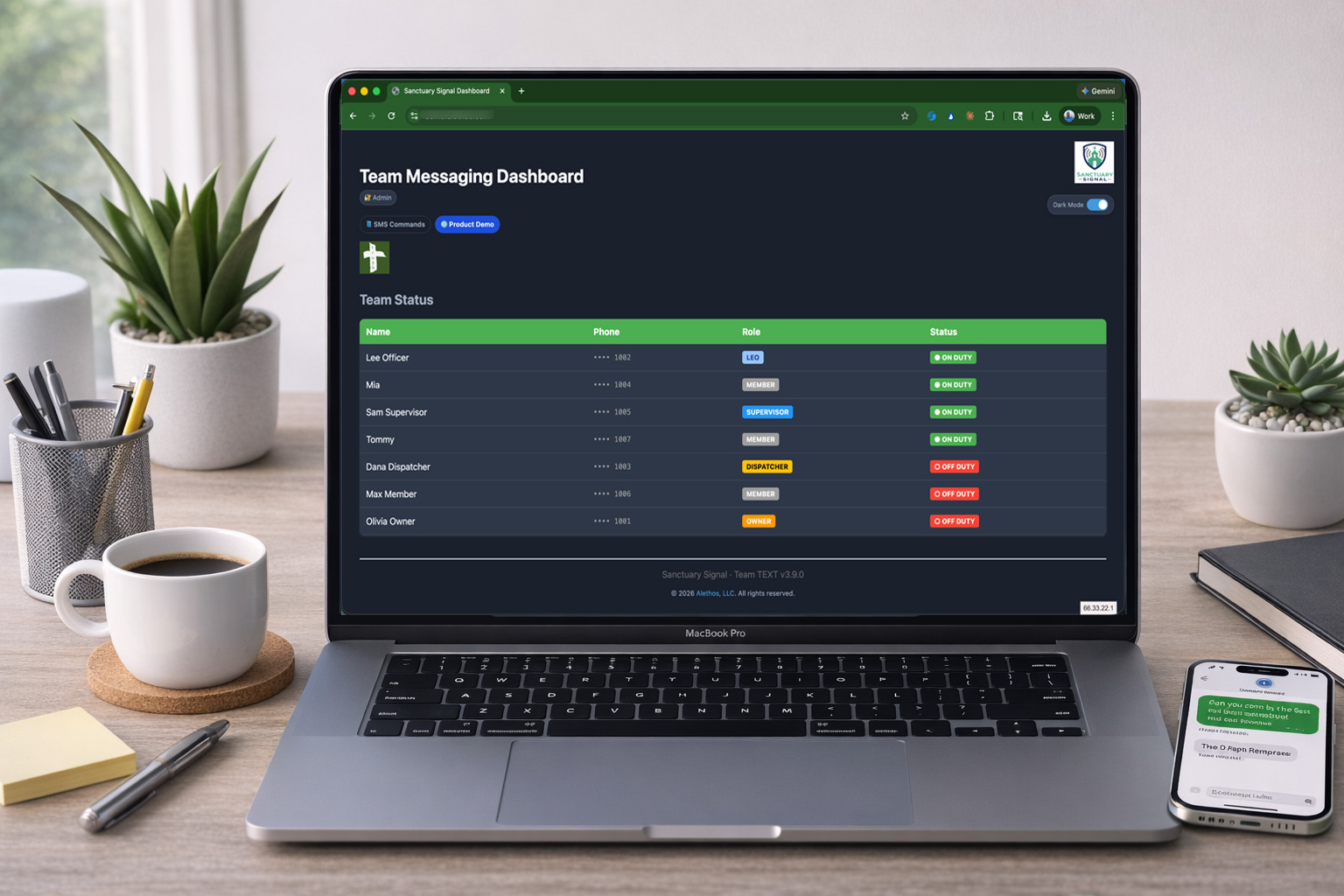
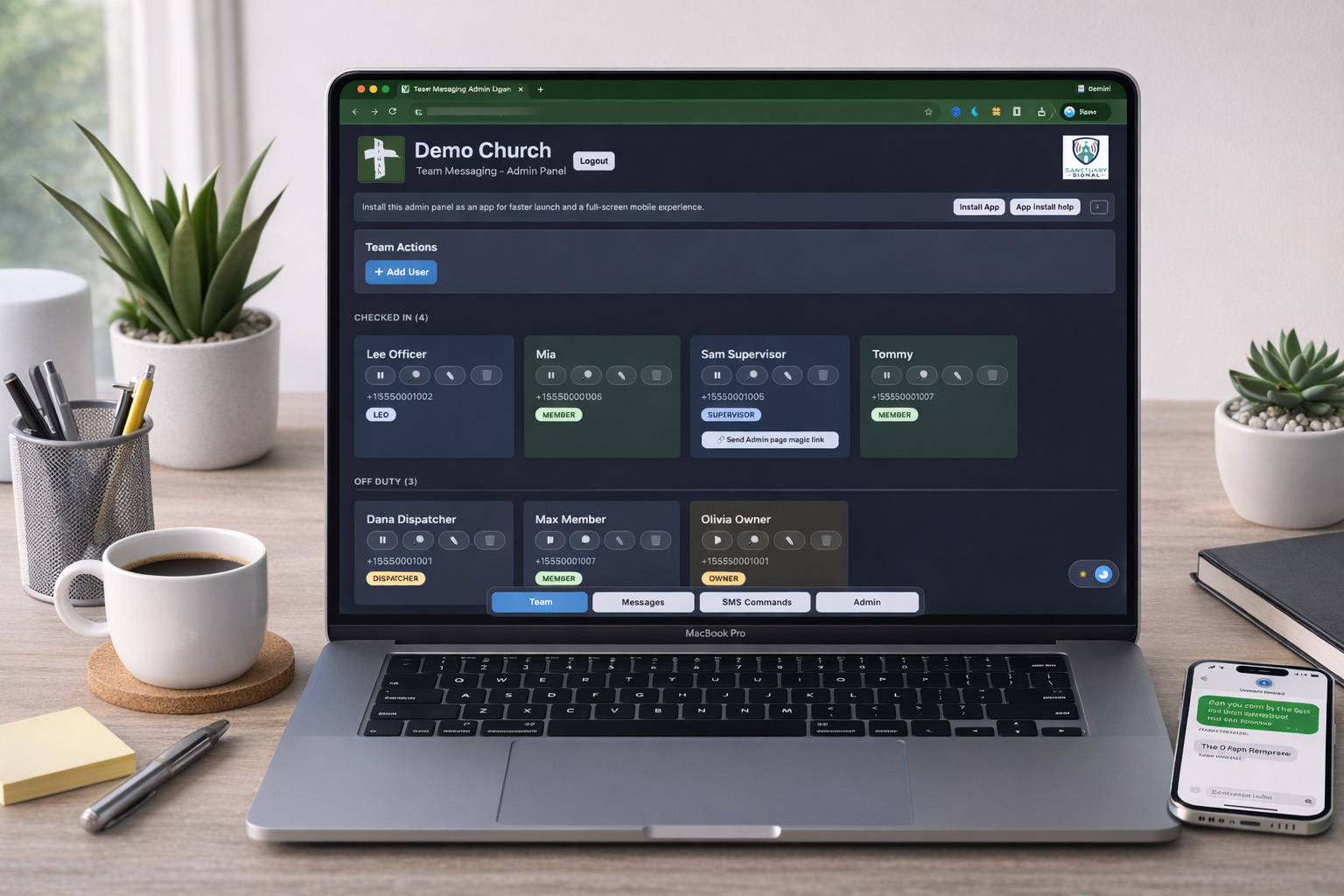
A lightweight dashboard gives quick visual status and access points without opening a full admin workflow.
Duty visibility: Quickly see who is checked in, on duty, or off duty, including assigned role.
Bookmark-ready: Teams can bookmark this page for rapid status checks during service windows.
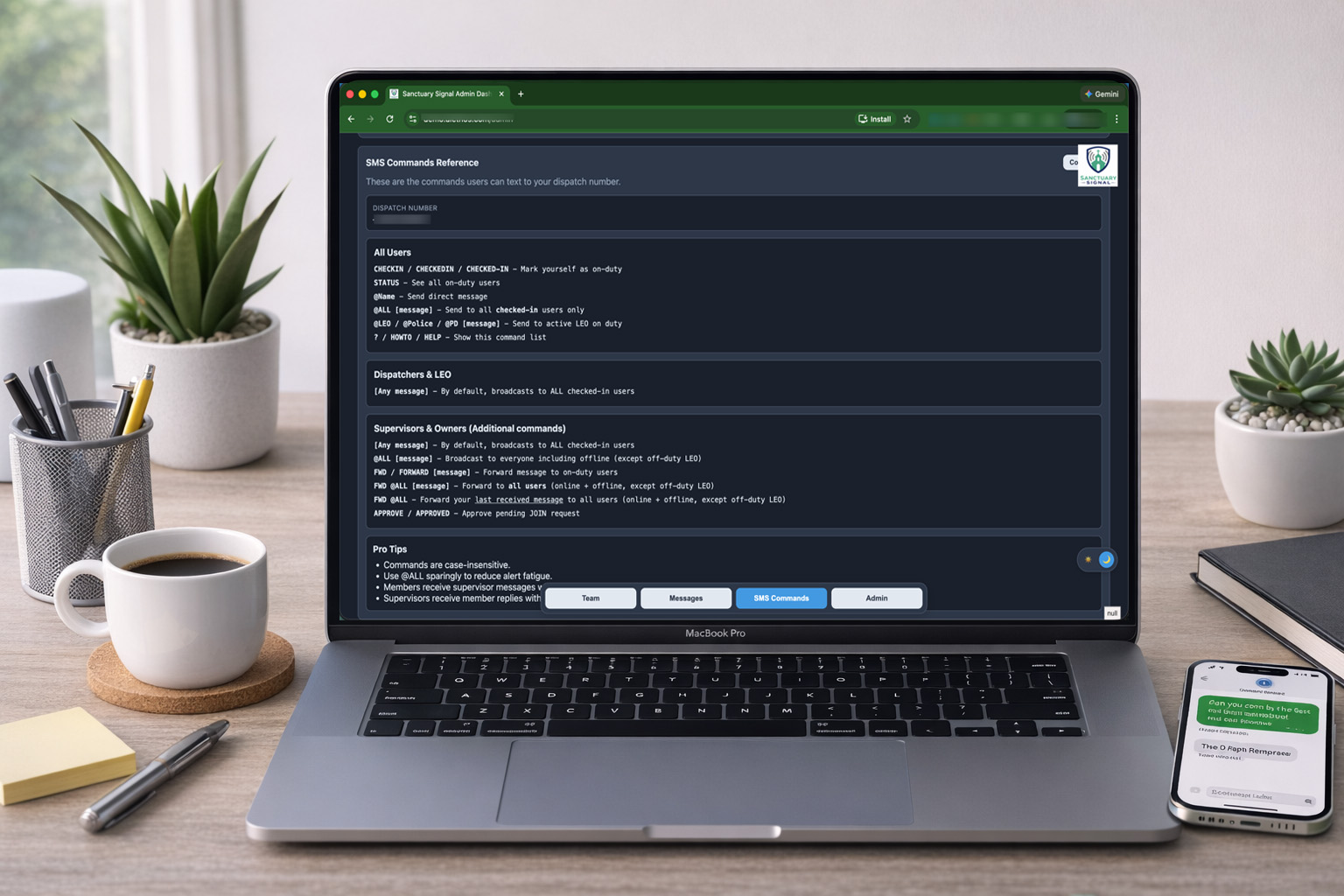
Command reminders: Dashboard access keeps SMS command references close at hand.
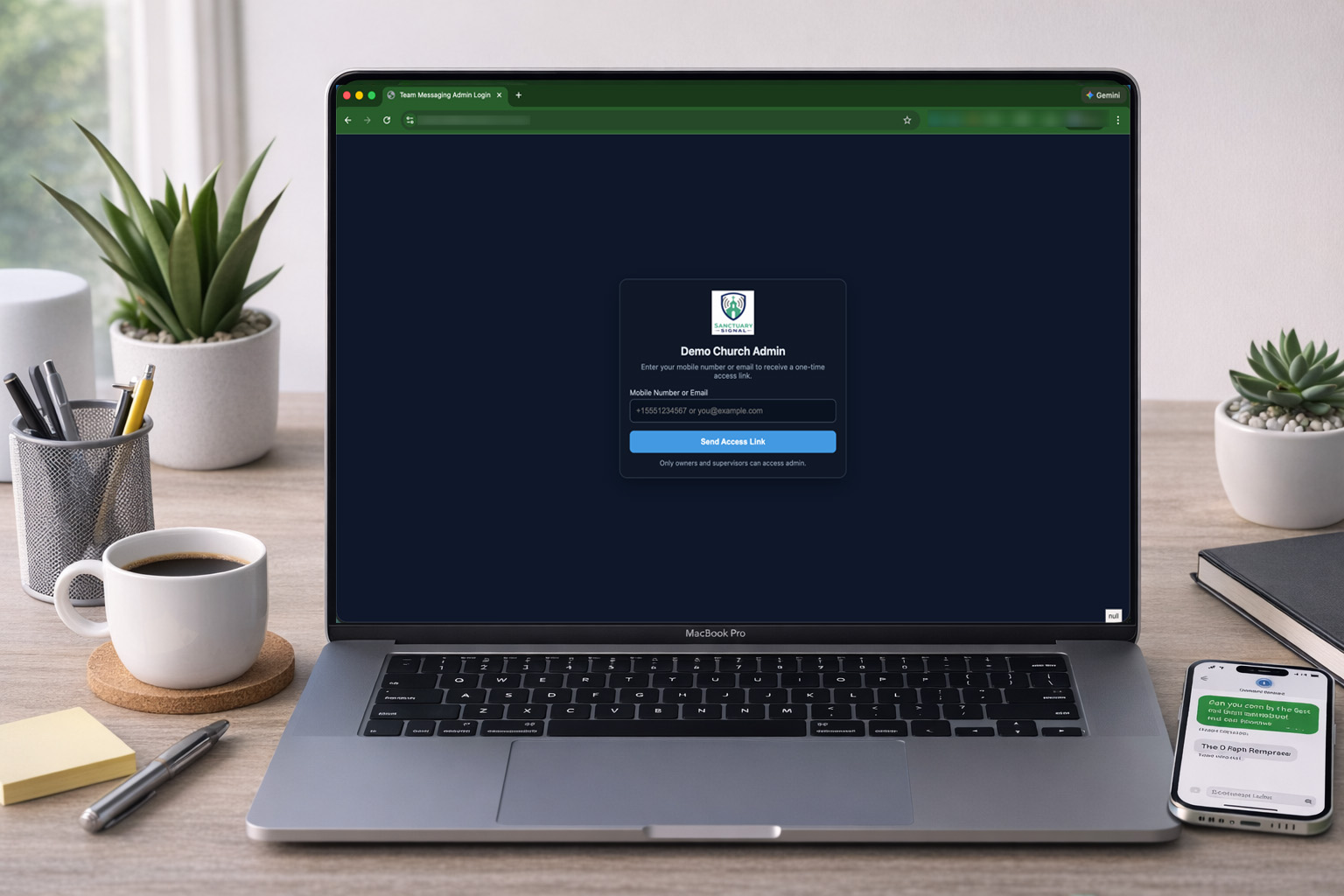
Access path: Supervisors and Owners can log in from this page when deeper management is needed.
5. End of shift summary
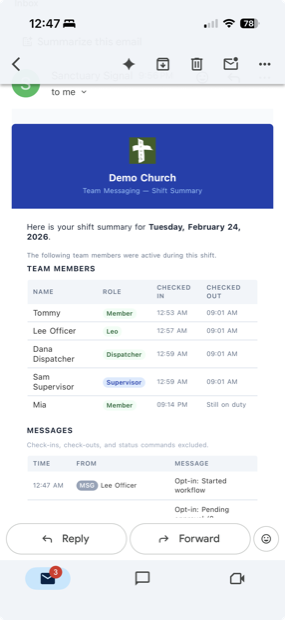
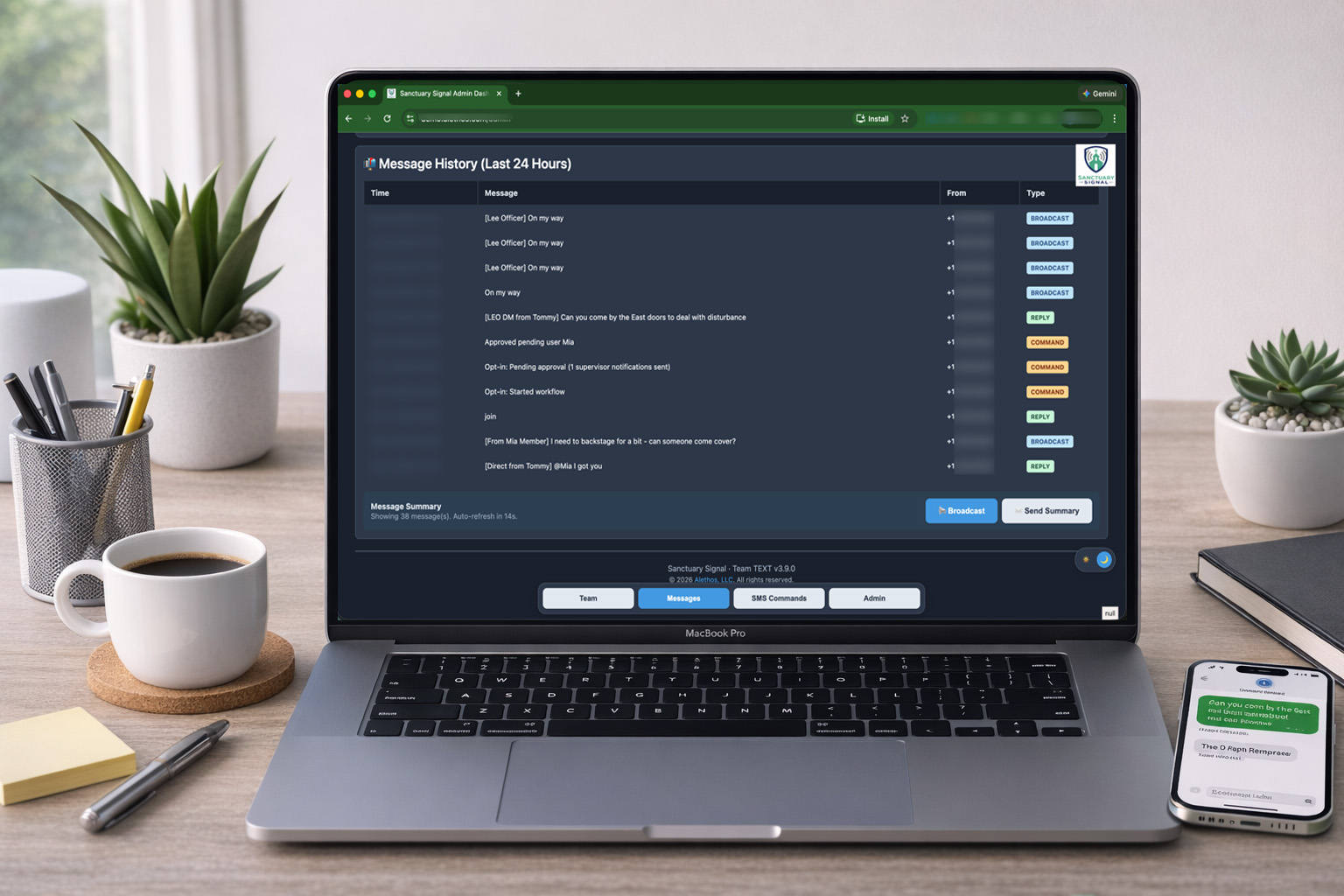
At end of shift, Sanctuary Signal TEXT will automatically send an email summary of who was on-duty along with all message activity to the on-shift supervisor.
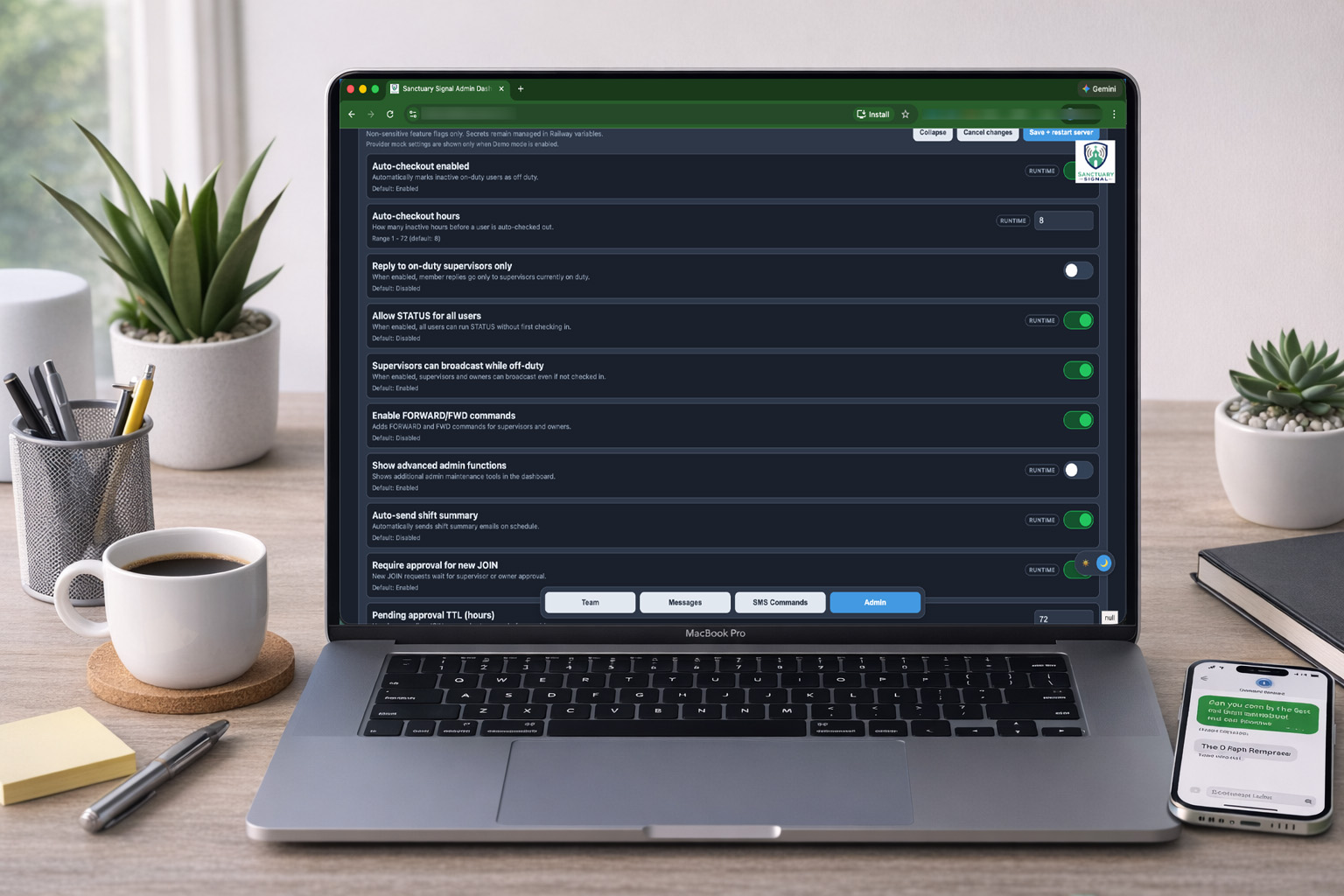
Team members are auto-checked out using an Owner-configured time limit in the feature settings. No risk of members forgetting to clock out and get messages while off duty.
6. After shift review
Leadership reviews outcomes and follow-up actions to improve next-shift readiness.
Admin access:Only authorized leaders can enter the operations console.
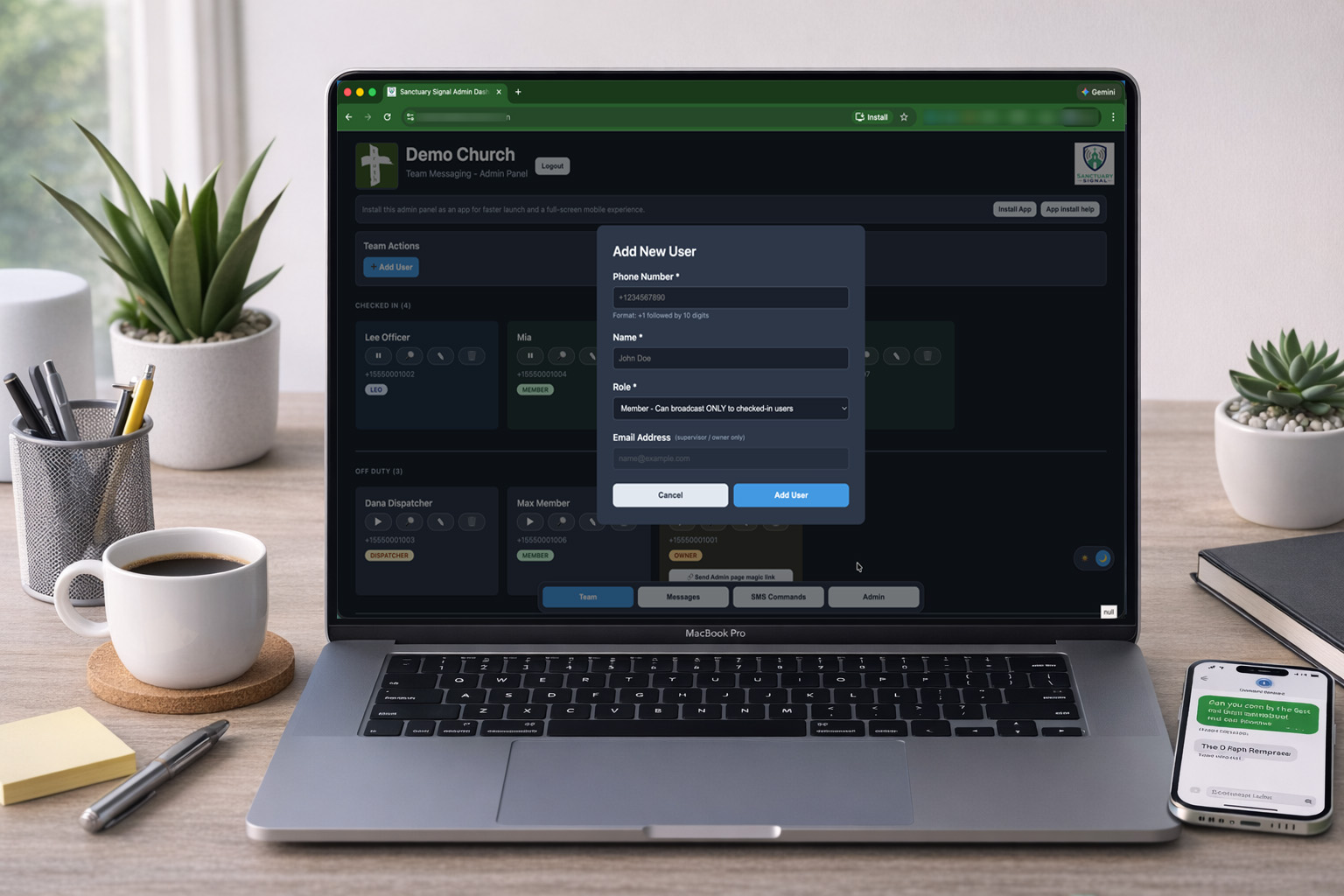
Team overview: Add / Update team members, roles and contact info.
Message history: Audit communication flow for follow-up needs.
Queue review: Resolve pending items and update assignment state.
Admin dashboard
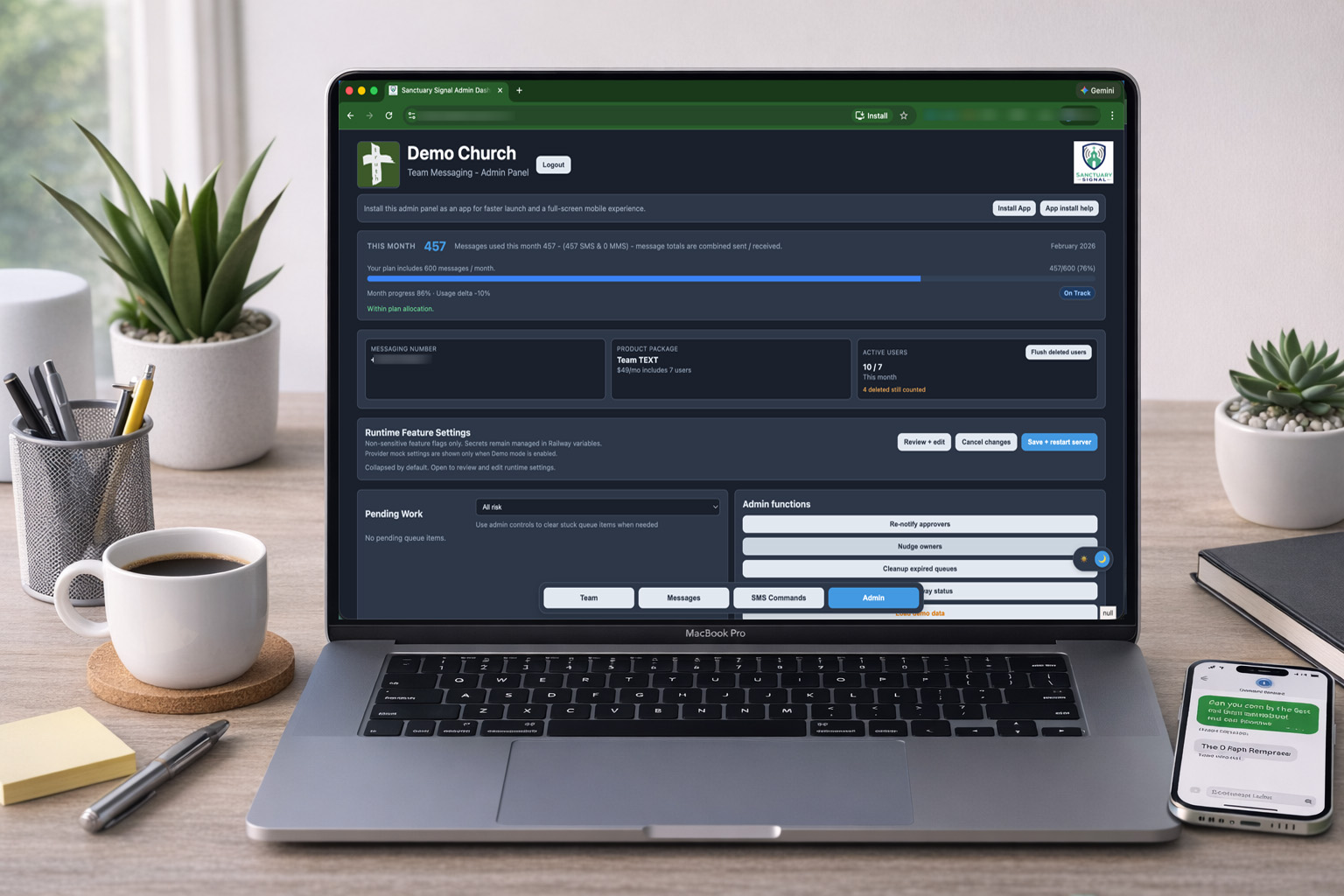
Best viewed on a tablet, desktop, or mobile phone for fast access to day-to-day operational views - also installable as a lightweight web app.
Team status: Live duty visibility and role context during active service windows.
Team administration: Add, update, and approve users while maintaining role-based access control.
Plan usage reporting: Track monthly activity and message usage for planning and budget predictability.
Owner feature controls: Configure behavior to match your local church environment and response model.
Ready to take the next step?
You have seen the flow. Choose the path that fits your team.